
Square Supported Printers: A 2026 Restaurant Guide
· Thibault Le Conte
The rush usually starts the same way. A DoorDash tablet chimes, an Uber Eats order pops up, someone at the counter needs a receipt, and a cashier is retyping modifiers while the kitchen asks where the ticket went.
That’s where printer decisions stop being “hardware stuff” and start affecting service. If your Square setup uses the wrong printer, or the right printer connected the wrong way, orders stall, tickets print in the wrong place, and staff start building workarounds. Workarounds are expensive. They slow the line, create missed modifiers, and put managers back into manual babysitting mode.
A proper Square setup fixes that by turning printing into a reliable part of your workflow. A supported printer gives Square a clean path to print receipts, kitchen tickets, and labels without guesswork. In a restaurant delivery environment, that matters because every extra touch creates another chance for a bad handoff between the app, the POS, and the kitchen.
I’ve seen the difference firsthand in busy operations. The stores that run cleanly aren’t always the ones with the fanciest hardware. They’re the ones that use square supported printers matched to the actual station, the actual device, and the actual order flow.
The End of Delivery Tablet Chaos
When a restaurant adds delivery, the first problem usually isn’t demand. It’s process.
A cashier takes a pickup order at the front. A delivery tablet rings. Another order comes in with extra modifiers. Someone writes one ticket by hand because the kitchen printer didn’t catch the order. A few minutes later, a driver shows up for the order nobody started. That’s not a staffing issue. It’s a routing issue.
In one common setup, the front counter runs Square, while Uber Eats and DoorDash orders live on separate tablets. Staff then manually re-enter those delivery orders into the POS so the kitchen can see them. That creates three points of failure: wrong item, missed modifier, or delayed ticket.
What a supported printer changes
A supported printer gives your POS one dependable output point. Instead of hoping a staff member notices a tablet alert and keys it in correctly, Square can send the order where it belongs as part of normal service.
For restaurant delivery, the goal is simple:
- One order source at the counter: Staff ring in in-store orders on Square.
- One print path to the kitchen: Tickets land in the right production area.
- One less manual step: Staff stop acting like a bridge between disconnected systems.
Practical rule: If a kitchen depends on staff to watch tablets and retype orders, that kitchen is one distraction away from a missed order.
The printer is what makes the workflow visible. The POS might hold the data, but the kitchen still needs a ticket at the right station, at the right time, with readable modifiers. That’s why square supported printers matter so much in restaurant operations. They don’t just print paper. They stabilize service.
Understanding Printer Connection Types for Your Restaurant
Most printer problems come from choosing the wrong connection type, not the wrong brand.
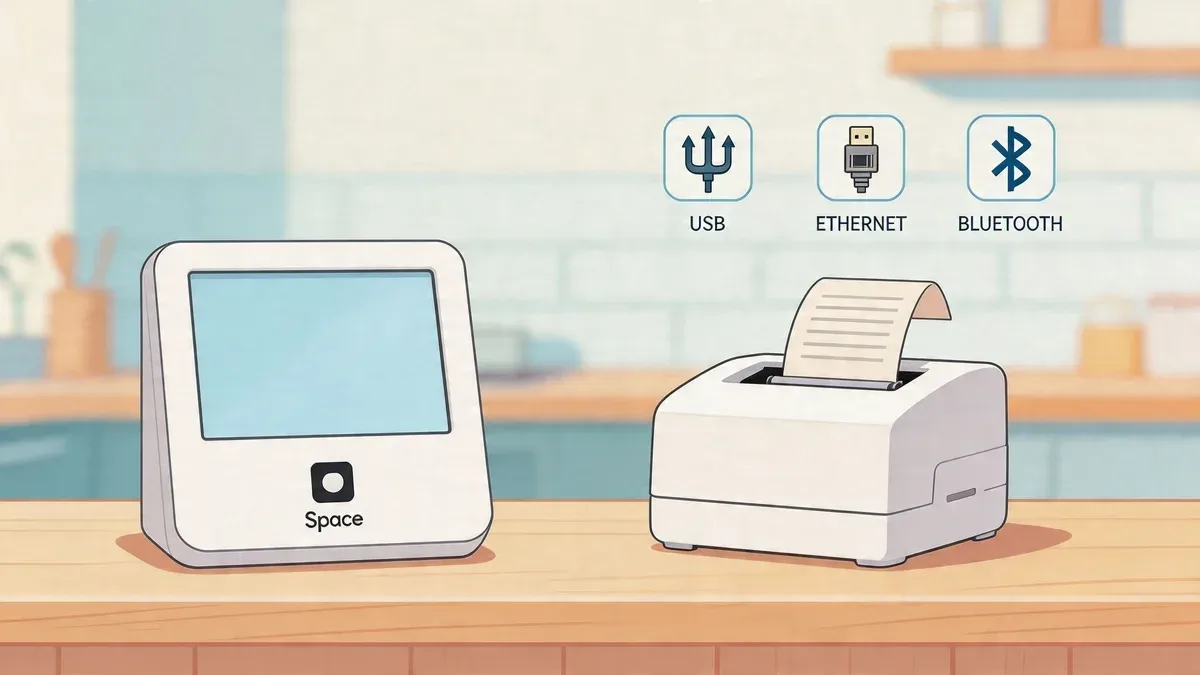
In plain language, think of it this way. A USB printer is a direct phone line to one device. An Ethernet printer is an office phone system shared across the building. A Bluetooth printer is a walkie-talkie. Convenient, but less ideal when the room is busy and you need absolute consistency.
If you’re still sorting out the basics of your POS setup, this guide to what a POS system does in a restaurant helps frame where printers fit into the bigger workflow.
USB works best for one fixed station
USB is the simplest option. The printer is physically connected to one Square device, and that’s the device that prints to it.
That’s why USB is often the safest choice for:
- Front counter receipts
- A single cashier station
- Small restaurants with one main POS
- Operators who want the least moving parts
The trade-off is reach. If the printer is plugged into one terminal, other devices won’t automatically share it the way a network printer can.
Ethernet is best for shared kitchen printing
Ethernet, or network printing, gives you flexibility across multiple devices. If your Square hardware and printer live on the same network, more than one POS station can route jobs to the same printer.
That’s where larger dining rooms, bars, and multi-station kitchens usually benefit. A bartender, cashier, and manager terminal can all feed the same production printer without crowding one register.
Bluetooth has a narrower role
Bluetooth has a place, but mostly for mobility. It’s useful when a staff member needs a portable printer tied to a mobile workflow.
Use Bluetooth when portability is the requirement. Don’t use it by default just because it feels simpler on day one.
For restaurant operations, the right connection type depends on one question: who needs to print, from where, and to which station? Once you answer that, the printer choice usually becomes obvious.
Square Supported USB Receipt Printers
If you want the most stable setup for a primary POS station, start with USB.
As of May 2020, Square supports 11 USB receipt printers from Star Micronics and Epson, according to this Square USB printer compatibility breakdown. That matters because USB remains the cleanest way to avoid connection drift during service. One device, one cable, one printer.
What works well in real restaurants
Square’s supported USB lineup is built around direct compatibility with hardware such as Square Stand, Android devices, and Square Terminal. Models called out in the compatibility list include Star Micronics TSP654IIU, Star Micronics TSP651U, and Epson TM-m30.
In practical terms, that means these are strong fits for:
- Receipt printing at a fixed checkout station
- Ticket printing where one device controls one printer
- Restaurants that want fewer variables during lunch and dinner rushes
The hardwired setup is the advantage. There’s less troubleshooting than with a printer that depends on wireless conditions, device pairing, or shared network traffic.
What catches operators off guard
The biggest mistake is assuming “USB compatible” means “works with every Square device the same way.” It doesn’t.
The models above are supported on Square Stand, Android, and Square Terminal, but not on iPad without Stand or iPhone, per the same compatibility reference. That’s where installs go sideways. Someone buys a printer that worked in one location, then tries to use it on a different Apple device and finds out Square won’t see it.
Before buying any printer, match the exact printer model to the exact Square device. Brand-level compatibility isn’t enough.
Best use case for USB
USB is the gold standard when you want a receipt printer to stay locked to one station. If you’re running a cashier counter, host stand, or compact service line, USB keeps the workflow predictable.
The Epson TM-m30 is a practical value option when counter space is tight. The trade-off is speed versus some Star models, but the smaller footprint makes it easier to live with in cramped setups.
Using Network Printers for Advanced Restaurant Operations
Network printers solve a different problem. They let multiple Square devices send tickets to the same destination.
That’s a major advantage when the restaurant has several order-entry points. A server can ring in from one terminal, the bar can send from another, and the front counter can still print to the same kitchen station without moving cables around.
Where network printing earns its keep
Think about a real service flow. A guest orders at the bar. At the same time, a manager is handling pickup traffic at the front. Both need the kitchen to see tickets in one place.
That’s where Ethernet printing is worth the extra setup. Instead of tying the kitchen printer to a single POS, you put the printer on the network and let Square route from multiple devices.
This is especially useful in restaurant delivery environments where incoming app orders need to land alongside in-house orders. If you’re improving routing across channels, this article on how online order management improves restaurant efficiency and profit is a useful companion read.
Printer Profiles matter more than the cable
A lot of operators think the network cable is the hard part. It isn’t. The hard part is assigning the right print jobs to the right printer profile inside Square.
Set profiles based on function, not location labels alone. Examples:
- Kitchen hot line: Food tickets only
- Bar printer: Drink tickets only
- Front counter receipt printer: Customer receipts only
That prevents noise. If every station prints everything, staff stop trusting the paper.
What works and what doesn’t
Network printers work best when:
- The printer has a permanent home
- The network is stable
- Profiles are tested before service
- Each station has a clear role
They work badly when restaurants treat the network like a shared junk drawer. If the printer changes ports, gets moved without updating settings, or lands on the wrong network segment, tickets disappear and everyone blames the POS.
For advanced restaurant operations, Ethernet is often the best choice. But it only pays off when the routing is intentional.
Choosing a Dedicated Kitchen Printer for Food Tech Success
A kitchen printer isn’t just a receipt printer sitting near the grill. It has a different job.
The kitchen needs fast output, readable tickets, and hardware that can survive heat, moisture, and constant handling. That’s why the printer you use at the front counter often isn’t the one you want on the expo line.
If you’re mapping printer placement around prep, expo, and ticket flow, this overview of back-of-house restaurant operations is worth reviewing.
Star mC-Print3 for speed and kitchen durability
The Star Micronics mC-Print3 is one of the clearest examples of a kitchen-ready Square printer. Square notes on its printer compatibility page that the mC-Print3 runs at 250mm per second on 80mm thermal paper, includes splash-proof construction, and prints a standard kitchen ticket in approximately 3 seconds.
That combination matters in a busy kitchen. Speed keeps tickets moving. The wider paper gives modifiers room to breathe. Splash resistance matters because kitchen counters aren’t clean office desks.
Epson TM-m30 for smaller counters
The Epson TM-m30 fits a different operation. It’s the practical pick when space is the limiting factor and you need something physically smaller than the Star units.
That’s the trade-off:
- Star mC-Print3: Better for speed and harsher environments
- Epson TM-m30: Better when the footprint matters most
Neither choice is “best” in every store. The right answer depends on your line volume, prep layout, and how much punishment the hardware will take.
What to prioritize before you buy
Use these three filters:
Priority Why it matters in restaurant operations Print speed Fast output helps prevent ticket backup during rushes Paper width Wider paper makes modifiers and item details easier to read Mounting and placement The printer has to fit the actual kitchen workflow, not just the spec sheet
A slow kitchen printer doesn’t just delay paper. It delays firing, bagging, handoff, and driver pickup.
For food tech success, pick the unit that matches the production environment. A compact printer at the counter and a dedicated kitchen printer in the back is often a much stronger combination than trying to make one model do both jobs.
Quick Reference Guide to Top Square Printers in 2026
Busy operators don’t need another long explanation. They need a fast shortlist.
Square’s broader printer ecosystem supports over 50 compatible models, and the paper split is straightforward: stationary printers use 80mm paper, while mobile Bluetooth printers use 58mm paper, according to this Square printer overview. For day-to-day restaurant use, that usually means 80mm for counters and kitchens, 58mm for mobile scenarios.
Top Square Supported Printers Comparison
Printer Model Connection Type Best For Key Feature Star Micronics TSP143IV UE USB Front counter receipt printing Strong fit for fixed POS stations Star Micronics mC-Print3 USB Kitchen ticket printing Fast output and splash-proof build Epson TM-m30 USB, Network Tight counters and compact setups Smaller footprint Star TSP654IIU USB Square Stand and Android stations Direct wired reliability Star SM-S230i Bluetooth Mobile iOS receipt printing Portable workflow support
How to use this shortlist
Use the table like a buying filter:
- Single fixed register: Start with a USB receipt printer.
- Dedicated kitchen line: Use a kitchen-oriented 80mm printer.
- Shared printing across stations: Look at network-capable hardware.
- Mobile service on iOS: Bluetooth has a role, but keep it limited.
This is the practical way to narrow down square supported printers. Don’t start with brand loyalty. Start with the station, the device, and the print job.
Adding Label Printers for Order and Inventory Management
Receipts and kitchen tickets handle production. Labels handle clarity.
In restaurant delivery, labels help staff identify drinks, seal bags, mark customer names, and separate similar orders before they hit the pickup shelf. In retail-style food operations, they also support item tracking and barcode workflows.
Supported label printer brands inside Square
Square supports three dedicated barcode label printer brands: DYMO, Zebra, and Avery in the US, according to Square’s accessories compatibility page. That supported list matters because labels are only useful if the POS can reliably create and send them.
For operators, the practical split looks like this:
- Zebra: Strong fit for barcode label workflows and item labeling
- DYMO: Useful for straightforward label output
- Avery: Relevant for US-only support scenarios
Where labels save headaches
Labels solve very specific restaurant problems:
- Custom drink identification: A DoorDash latte with milk changes and add-ons needs a clear cup label
- Bag accuracy: A pickup shelf full of similar bags gets easier to manage when each order is clearly marked
- Prep and packaged items: Barcode labels help track items in Square for Retail workflows
The label printer doesn’t replace the kitchen printer. It handles the handoff details that keep finished orders from getting mixed up.
When label printing is worth adding
Not every restaurant needs labels on day one. But if your team handles high modifier volume, drink-heavy delivery, or prepacked grab-and-go items, labels quickly move from “nice to have” to operationally useful.
The key is to keep label printing tied to a real workflow. Don’t buy one because it sounds modern. Buy one because your staff is already losing time sorting cups, bags, or packaged goods by hand.
Simple Printer Setup Steps in Your Square POS
The setup should be boring. That’s a good thing.
When a printer install goes well, staff barely notice it. The device connects, Square sees it, the printer station gets named correctly, and the test print works. Most problems happen because one of those steps gets rushed.
If you’re building a more connected hardware workflow around printers, terminals, and ordering channels, this article on the integrated POS system model gives helpful context.
A clean setup sequence
Use this order and don’t skip ahead:
-
Connect the printer physically first
Plug in power, paper, and the actual connection type you chose. For USB, that means the printer is attached to the correct Square device. For network printing, make sure the printer is on the same network the POS will use. -
Open printer settings in Square
Go into the Square app and find the hardware and printer settings area. -
Create a printer station
Name it by function, not guesswork. “Kitchen Hot Line” is better than “Printer 1.” -
Assign what it should print
Receipts, order tickets, voids, and other print types should be intentional. Don’t let a kitchen printer print customer receipts unless there’s a reason.
Name stations by job
This one small habit prevents a lot of confusion later.
Good examples:
- Expo Printer
- Bar Tickets
- Front Receipt
- Pickup Shelf Labels
Bad examples:
- Main printer
- Back printer
- Square printer
A short visual walkthrough can also help teams that prefer to see the setup in action:
Test before service starts
After setup, run a live test with an actual menu item and modifier. Don’t stop at a generic test print.
Check three things:
- Did it print at the right station
- Did modifiers appear clearly
- Did the correct printer profile handle the order
If those three pass, the setup is usually solid enough for service.
Automate Delivery Order Printing with OrderOut Integration
Manual delivery entry is one of the easiest ways to lose margin.
A restaurant gets an Uber Eats order. Staff read it from a tablet, re-enter it into Square, then wait for the kitchen printer to fire. Every extra touch adds delay. It also creates another chance to miss “no onions,” send the wrong side, or forget the drink.
The stronger workflow is direct integration. When delivery orders feed into Square automatically, the POS becomes the single source of truth. Once the order lands in Square, the existing printer station can route it to the correct kitchen printer without staff retyping anything.
Before and after the integration
The before version looks like this:
- Tablet rings
- Staff member notices it
- Staff member retypes the order
- Kitchen waits on manual entry
- Errors show up at handoff
The after version is much cleaner:
- Delivery order enters the POS automatically
- Square processes it like any other order
- The assigned printer station sends the ticket where it belongs
For restaurants already using Square, the app connection starts in the Square App Marketplace listing for OrderOut. If you want a broader view of the platform itself, visit the OrderOut website.
Why the printer still matters
Integration doesn’t remove the need for the right printer. It makes the right printer more valuable.
If the POS is connected but the print setup is sloppy, automated orders still won’t reach the kitchen cleanly. The restaurant needs both pieces:
- The order enters Square automatically
- The printer station is already configured correctly
That combination is what reduces tablet chaos. The integration handles order flow. The printer handles execution.
Troubleshooting Common Square Printer Issues and Limitations
Most printer failures in restaurants aren’t mysterious. They’re usually one of a few repeat offenders.
The common calls sound familiar. “Printer says offline.” “Receipts print but kitchen tickets don’t.” “The new label printer powers on, but Square won’t detect it.” The fix starts with narrowing the problem down by connection type and printer role.
Start with the basics that actually fail
Run this checklist in order:
-
Power and paper first
Make sure the printer is on, loaded correctly, and not sitting on an error light staff ignored during the rush. -
Check the connection path
USB printers should be plugged into the device that’s supposed to control them. Network printers should still be on the same network as the Square hardware. -
Review the printer profile
A working printer can still appear “broken” if the wrong profile is assigned or if order tickets were never enabled for that station. -
Restart the right equipment
For network issues, restart the printer and network gear before changing settings blindly.
If the problem is a stubborn offline status, this guide on how to fix printer says offline issues is a useful general troubleshooting reference before you escalate.
Don’t try to force unsupported hardware
Restaurants waste the most time here.
A notable gap in Square’s support is linerless label printing beyond a few Star models. As discussed in Square’s community discussion about Epson TM-L90 support, popular alternatives like the Epson TM-L90 are not supported, and that remains a challenge for mixed iOS and Android restaurants that need prep or allergen labels.
That means:
- If Square doesn’t support the model, drivers won’t save you
- If the printer is popular in another POS environment, that still doesn’t make it compatible here
- If your workflow depends on linerless labels, verify support before you buy
Unsupported hardware doesn’t become reliable because it almost works in testing.
The most practical fix
Match the exact Square device, exact printer model, and exact use case before purchasing. That one habit prevents more downtime than any emergency troubleshooting trick.
Your Next Step to Full Restaurant Automation
The right printer choice does more than produce receipts. It shapes how orders move through the building.
If you choose square supported printers based on the workflow, front counter, kitchen, labels, mobile, or shared network routing, Square becomes easier to trust during service. Orders print where they should. Staff stop retyping delivery tickets. The kitchen gets cleaner information. That’s what improves restaurant efficiency.
For most operators, the next step is simple. Audit your current print path. Identify where manual entry still happens. Then replace weak links with supported hardware and a cleaner POS flow.
If you want to connect your delivery apps directly into Square and move toward a cleaner, more automated order workflow, start with OrderOut. Restaurant owners can begin free onboarding in a few clicks through the OrderOut dashboard.