
Printer Is Online But Says Offline? A Restaurant Fix Guide
· Thibault Le Conte
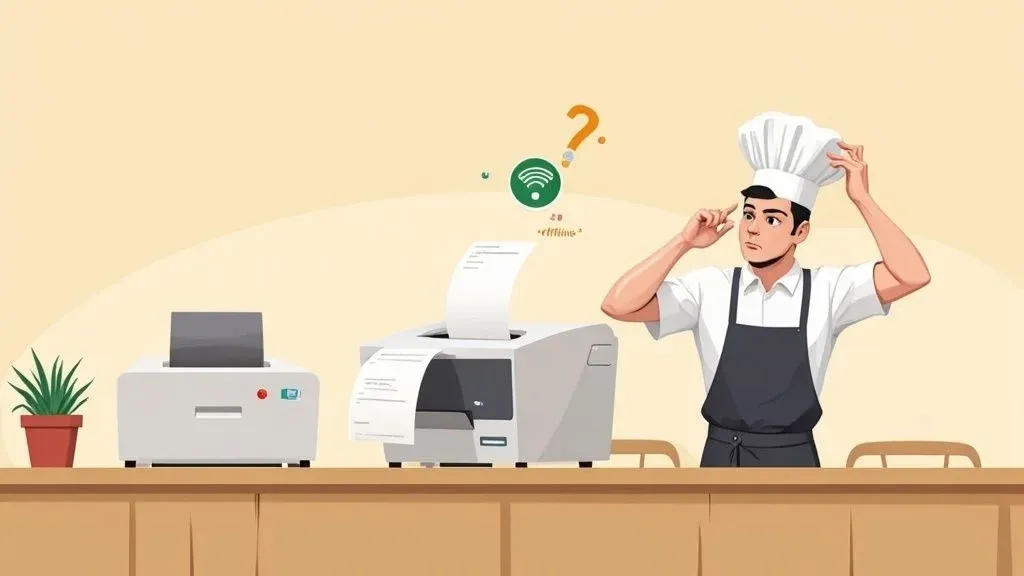
It’s the middle of the dinner rush, a DoorDash order comes through, and… nothing. The ticket won’t print. That sinking feeling is all too familiar for anyone in the restaurant business.
When your POS system insists the printer is online but says offline, it’s almost always a simple communication breakdown. In simple terms, your ordering system and your printer aren’t talking to each other correctly. Before you start unplugging everything in a panic, there are a few immediate checks you can run that solve this problem in minutes, keeping your delivery orders flowing and your kitchen running smoothly.
Why Your Restaurant Printer Says Offline: The Impact on Restaurant Operations
In a bustling restaurant, a printer that won’t print is more than an inconvenience—it’s chaos. Orders get missed, the kitchen backs up, and hungry customers start getting hangry. This single point of failure can bring your entire delivery and takeout operation to a grinding halt, hitting your revenue and stressing out your staff. This is a critical issue for restaurant efficiency and POS integration.
But the cause is often far less dramatic than it seems. It usually boils down to a simple glitch between your hardware (the printer) and your software (the POS).
Believe it or not, this isn’t just a restaurant problem. Industry-wide, up to 30% of all IT help desk calls are for this exact error. Digging into the data, over 35% of these cases come from basic Wi-Fi or Ethernet connection issues, and another 25% are due to outdated software or drivers. For a restaurant, this means lost time, potential for errors, and reduced staff productivity—all of which hurt the bottom line.
Immediate Troubleshooting Checklist
Before you start digging into complex settings, let’s run through the essentials. These quick actions are designed to get your delivery dockets printing again and minimize downtime when every second counts. Think of it as the first-aid kit for your kitchen’s tech setup.
Action Step What to Do Why It Matters for Your Restaurant Check Physical Connections Firmly push the power cord into the printer and wall. Ensure the Ethernet cable is clicked into both the printer and your router. A loose cable from daily cleaning or vibrations is the #1 culprit and the easiest fix, preventing order delays. Perform a Power Cycle Turn off the printer, your POS terminal, and your router. Wait a full 60 seconds. This clears temporary glitches and memory leaks, giving your devices a fresh start to communicate. It’s a quick way to reduce errors. Restart in Order Turn devices back on in this specific sequence: 1. Router 2. Printer 3. POS Terminal. This allows your network to establish itself first, ensuring the printer and POS can connect properly for seamless restaurant operations. Verify Network Connection Look for a solid or blinking green light near the printer’s Ethernet port. No light means no network connection. A solid light confirms it’s physically connected and ready to receive orders from your delivery services.
Following these steps in order will resolve the vast majority of “offline” printer issues without needing to call for tech support, saving you time and money.
A critical step in resolving stubborn connectivity problems is knowing how to reset network settings on your devices, which can often restore communication instantly.
For example, a busy cafe using a Square POS system found their Uber Eats printer went “offline” every afternoon. The fix wasn’t a new printer or an expensive IT call; it was simply restarting their router to clear the network traffic jam. This five-minute task saved them an hour of lost sales daily, a clear win for cost and time savings.
To get back online fast, let’s walk through that sequence.
First, check the cables. Is the power cord firmly plugged into both the printer and the wall outlet? Is the Ethernet cable clicked securely into the printer and your network router? A loose cable is the most common and easiest fix, so always start there.
If the cables are solid, it’s time to power cycle everything. This isn’t just a quick on-and-off flick of the switch.
Turn off the printer, your POS terminal (like a Clover station), and your internet router. Let them sit for a full 60 seconds. This gives them enough time to clear out any temporary glitches.
Then, turn them back on in a specific order:
- First, power on the router and wait for its lights to stabilize.
- Next, turn on the printer.
- Finally, turn on your POS terminal.
This sequence allows each device to properly grab an IP address and re-establish a clean line of communication on the network.
Checking Your Network: A Key to Restaurant Delivery and POS Integration
Alright, so a restart didn’t do the trick. The next likely culprit is your network. In simple terms, your POS terminal and your printer aren’t on speaking terms because they’re on different Wi-Fi networks. Think of it like a party—if your POS is in the kitchen and the printer is out on the patio, they can’t hear each other. A stable, unified network for your operations is absolutely essential for restaurant efficiency.
This often happens when a restaurant has separate Wi-Fi networks for staff and guests. When a new DoorDash or Uber Eats order hits, your POS needs a clean shot to the kitchen printer. Any little hiccup in that connection means a lost ticket, a delayed order, and a kitchen crew scrambling. This directly impacts your delivery speed and customer satisfaction.

Verifying Network Settings for Better Food Tech Operations
First thing’s first: double-check that both your printer and your POS terminal are logged into the exact same Wi-Fi network. It’s shockingly easy for a device to hop onto the “Guest” network by mistake, especially after a power outage or reset. This simple mix-up is probably the most common reason for the “printer is online but says offline” headache.
You’re not alone if this happens. One business survey found that 32% of companies face ‘offline’ errors every week, and 68% of those are chalked up to network issues. Sometimes the miscommunication is happening right inside the computer running the POS software, a problem that frequently pops up on Windows-based systems. You can dig deeper into this with these insights on printer connection issues.
I once worked with a local café that kept losing its Uber Eats printer connection every morning. Turns out, their router was assigning the printer a new IP address every single day. Their Square POS was trying to send orders to yesterday’s address and finding nothing. The permanent fix? We assigned the printer a static IP, a fixed address that never changes. This simple technical fix prevented daily order errors and improved staff productivity by eliminating troubleshooting time.
Actionable Steps for a Stable Connection
To build a more reliable printing setup and get your food tech flowing smoothly, you need to confirm the details. A quick glance at your POS system’s network settings will tell you which Wi-Fi it’s using. Next, print a configuration page from your thermal printer—this little slip of paper is gold, as it shows you exactly how the printer is connected.
- Confirm Network Names: The Wi-Fi network name (also called the SSID) on your POS has to be an exact match to what’s printed on the printer’s configuration page. No exceptions.
- Strengthen the Signal: If your printer is on the other side of the kitchen from the router, Wi-Fi might not be reliable enough. A good old-fashioned wired Ethernet cable is your best friend for rock-solid stability in restaurant operations.
For those of you running on systems like Clover, it’s also critical to make sure the printer is properly configured within the POS itself. If you need help with that, our guide on how to add a printer to a Clover POS walks you through the entire process. Taking these small but crucial steps will build a resilient system that saves you a ton of time and prevents costly order mistakes.
Clearing Software Glitches in Your POS Integration
When you’ve checked all the cables and confirmed your network is solid, but the printer still claims it’s offline, the problem is almost always hiding in the software. This is a classic headache in any modern restaurant; it’s that digital handshake between your POS system and the printer that’s failing, which directly impacts your restaurant’s efficiency.
The most common suspect is a background service called the print spooler. Picture it as the traffic cop for all your print jobs. When a new order dings in from DoorDash or Uber Eats, the spooler’s job is to queue it up and send it to the right printer. But just like a real traffic cop, it can get overwhelmed, stuck, or just crash, especially during a dinner rush. When that happens, your print jobs are stuck in limbo, even though all the hardware is working perfectly.

Unjamming Your Digital Traffic Cop
Luckily, clearing this invisible traffic jam is usually pretty simple. The fastest fix is often to just restart the print spooler service. It’s like giving that overwhelmed traffic cop a quick coffee break to reset. This simple action forces the system to take a fresh look at the print queue and reconnect with the printer, which can solve the “offline” error in seconds.
Technically speaking, you can do this on most Windows-based POS terminals through the “Services” application. Just find “Print Spooler” in the list, right-click it, and hit “Restart.” It’s a single click that can prevent a mountain of stress and lost revenue from delayed orders, saving significant time.
I worked with a busy pizzeria using a Clover system that had this exact issue. Every Friday night, like clockwork, their DoorDash tickets would stop printing. It wasn’t the network; it was the print spooler getting clogged from the sheer volume. A quick driver update for their thermal printer fixed the bug, cutting their order processing time by 20% and making Friday nights way less chaotic for the staff. This highlights how a small tech fix can boost staff productivity.
Keeping Your Food Tech Software Current
Another silent killer of a smooth operation is outdated software. Your printer drivers and your POS software must speak the same language. If one gets an update and the other doesn’t, they start miscommunicating, and that’s when you get phantom offline errors. For seamless POS integration, everything needs to be up to date.
- Printer Drivers: Think of these as the translator between your POS and the physical printer. Manufacturers release updates to squash bugs and improve performance. Keep them current.
- POS Software: Your POS provider, whether it’s Square or another platform, is constantly pushing out updates to improve integrations with services like OrderOut.
Making a habit of checking for these updates is one of the best proactive moves you can make. To really get ahead of these issues, it helps to understand the fundamentals of good system integration. These real-time data integration best practices are a great resource for that.
A solid setup from the very beginning also prevents a lot of these problems down the road. That’s exactly why we put together the OrderOut integration onboarding tutorial—to make sure you start on the right foot. Spending just ten minutes a week on software maintenance is a tiny investment for a printing workflow that just works, keeping your kitchen humming and customers happy.
Advanced Strategies for Persistent Restaurant Operations Issues
So, you’ve tried restarting everything, and that pesky “printer offline” error just keeps coming back. When the quick fixes don’t stick, it’s usually a sign of a deeper communication breakdown in your restaurant’s network. This is especially true when your POS has to talk to multiple delivery apps. It’s time to dig a bit deeper for a more permanent solution that will improve your restaurant’s efficiency.
One of the most reliable fixes is to give your kitchen printer a static IP address.
Right now, your printer probably has a dynamic IP, which is like a temporary parking spot on your network. Every time your router reboots, it can assign the printer a new “spot,” and your POS system suddenly has no idea where to send the orders. It’s looking for the printer in the old location, causing the connection to drop.
A static IP is like a permanently reserved parking spot. It never changes. This ensures your POS system always knows the printer’s exact address, creating a stable, reliable connection that stands up to the chaos of a busy service. This one change can dramatically cut down on those lost tickets from Uber Eats or DoorDash, reducing errors and saving money.
Watch Out for This Sneaky Windows Setting
Another surprisingly common culprit is a little-known setting within your POS terminal’s operating system called “Use Printer Offline.” While it has its uses for mobile printing, it can cause major headaches in a restaurant environment if it’s accidentally switched on.
When this setting is active, it basically tells your computer to “hold” all the print jobs in a queue until you manually tell it the printer is back online. For a kitchen that needs dockets printed in seconds, this is a complete non-starter and a major block to efficient restaurant delivery.
Here’s how to check and disable it:
- Head to the “Printers & Scanners” section in your system settings.
- Find your kitchen printer, click on it, and open the print queue (sometimes called “See what’s printing”).
- In the “Printer” menu at the top of that window, look for the “Use Printer Offline” option. Make sure it is unchecked.
I once worked with a cafe that used a Clover POS running on a Windows tablet. Every single morning, their kitchen printer would be offline. After ruling out network issues, we found this exact setting had been checked. Unchecking that little box permanently solved a problem that was costing them nearly an hour of troubleshooting every day—a huge time savings.
By implementing these more advanced fixes, you’re shifting from temporary patches to building a truly resilient operational workflow. You’ll spend less time fighting with your tech and more time getting food out the door.
Building a Reliable Restaurant Printing Workflow
Let’s get practical. When your POS insists a printer is offline but you know it’s on, you don’t have time for guesswork. You need a simple, repeatable game plan that any manager or even a quick-thinking server can use to get things back on track in minutes. This is key to maintaining restaurant efficiency.
A solid printing setup is the backbone of a smooth restaurant. When it works, orders fly out faster, mistakes drop, and your team isn’t pulling their hair out. Getting a handle on the common culprits—from a loose cable to a software hiccup—is how you keep your operations smooth and protect your profits. It’s a cornerstone of effective food tech management.
Your Go-To Troubleshooting Steps
Instead of randomly poking at cables and restarting things, it pays to have a clear sequence. Often, the issue isn’t the hardware itself but how the software is communicating with it. This is where checking port settings comes into play—it’s a common software-level fix for those stubborn offline errors.

This little guide is a great visual reminder. In many cases, the problem is just that the software port doesn’t match the printer’s actual network address. A quick check and configuration can re-establish that stable connection.
One of the smartest things you can do is create a simple “Printer Fixes” checklist and tape it to the wall right by your POS station. This empowers your team to solve minor glitches on their own without needing to call a manager, which is a lifesaver during a dinner rush. If you’re looking to upgrade your setup entirely, you might be interested in learning about the benefits of a cloud-based food delivery service compatible kitchen printer.
Takeaway: Having a troubleshooting routine turns a crisis into a simple, manageable task. When a ticket from DoorDash fails to print, a quick checklist ensures your team checks the physical connections, does a quick power cycle, and verifies network settings before the kitchen even realizes there was a delay. This process drastically reduces food waste from missed orders and keeps your restaurant delivery machine humming.
Frequently Asked Printer Questions for Restaurant Owners

After helping countless restaurant owners untangle their tech knots, I’ve seen the same printer questions pop up time and again. Let’s tackle a few of the most common ones so you can get back to what you do best.
Why Does My Kitchen Printer Go Offline Every Morning?
Ah, the classic morning mystery. You walk in, ready for the day, and the kitchen printer is already acting up. This is almost always an IP address issue.
In simple terms, your network assigns temporary addresses to your devices. Overnight, these can change. Your POS system is still trying to send orders to the printer’s old address, which is now a dead end.
The technical fix is to set up a static IP address for your printer. This gives it a permanent, unchanging address on your network, so your POS never loses track of it. It’s a small change that makes a huge difference in your daily restaurant operations and efficiency.
Can I Just Use Any Printer with My POS System?
I wish it were that simple, but no, you can’t. Think of it like trying to fit a square peg in a round hole. Major POS providers like Square and Clover have specific lists of printers they’ve tested and approved.
If you go rogue and use an unsupported model, you’re inviting trouble. The drivers and software just aren’t built to communicate properly, which is a frequent cause of that frustrating “offline” error. Always, always check your POS provider’s compatibility list before you buy to ensure smooth POS integration.
How Much Does My Restaurant’s Wi-Fi Quality Matter?
More than you might think. A spotty Wi-Fi signal is one of the top culprits for printers dropping offline, which disrupts your restaurant delivery flow. That back-of-house printer might be just a bit too far from your router, or maybe there are a few thick walls and a stainless steel prep table in the way.
My advice? For mission-critical hardware like kitchen printers, a hardwired Ethernet connection is your best friend—it’s fast, stable, and reliable. If Wi-Fi is your only option, invest in a good network extender to make sure a strong, consistent signal is reaching every corner of your restaurant. This is a crucial investment in your restaurant’s food tech infrastructure.
Ready to Tame the Delivery Chaos for Good?
Let’s be real—getting your printer back online is a great first step, but it’s often just a symptom of a much bigger headache: managing a flood of delivery orders. If your counter looks like a command center with tablets for every delivery app, and your team is manually punching in every single order, you know exactly what I’m talking about.
It’s a recipe for disaster. Manual entry inevitably leads to expensive mistakes, eats up your staff’s precious time, and slows down your entire kitchen. The real game-changer is POS integration, where all those third-party delivery platforms—like DoorDash and Uber Eats—feed directly into your point-of-sale system.
Think about it this way: instead of a server frantically typing a DoorDash order into your Clover or Square POS, that ticket just appears at the kitchen printer the moment the customer hits “confirm.” This POS integration saves minutes on every single order, which easily adds up to hours of saved labor and improved staff productivity every single week. It’s a huge cost savings and error reduction win.
When you stop playing air traffic controller for tablets, you can get back to what you actually love doing: creating amazing food.
Ready to finally streamline your workflow and boost restaurant efficiency? Start integrating all your delivery apps for free in just a few clicks at https://dashboard.orderout.co.