
Solving Restaurant Printer Connection Issues for Good
· Thibault Le Conte
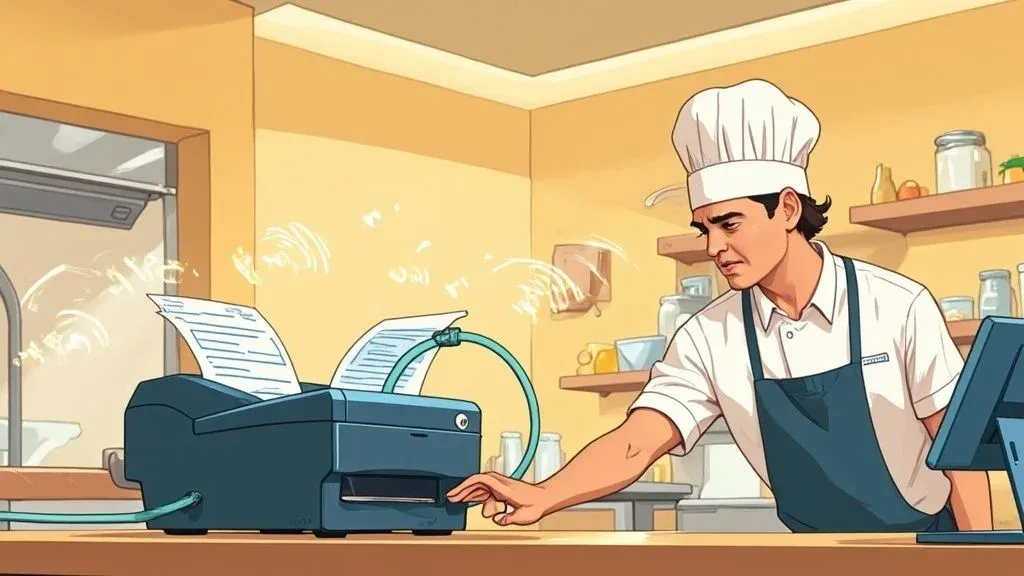
When your kitchen printer goes dark in the middle of a dinner rush, it’s more than a minor annoyance—it’s a full-blown operational crisis that halts your delivery and takeout orders. In simple terms, the problem usually isn’t the printer itself. It’s a breakdown in the digital path between your delivery app (like Uber Eats or DoorDash), your Point of Sale (POS) system, and the physical ticket. A single missed order leads to angry customers, lost revenue, and reduced staff productivity.
Finding the root cause means playing detective and following the order’s digital journey from the customer’s phone to your kitchen. This methodical approach is the key to getting back online fast, ensuring restaurant efficiency, and preventing future chaos.
Why Your Kitchen Printer Keeps Disconnecting for Restaurant Delivery
Think about what happens when an order from DoorDash comes in. It’s a journey. First, the order has to hit your POS system, whether it’s a Square or Clover terminal. From there, your POS has to tell the network to send that specific order to a specific printer. This is a critical step for smooth restaurant operations.
If any link in that chain snaps—the kitchen Wi-Fi hiccups, the POS is configured to send orders to the wrong device, or the printer’s own software is too old to understand the command—you get nothing. The connection fails, and the ticket never prints.
This isn’t just a tech headache; it’s a direct hit to your bottom line. One missed ticket can snowball into an angry customer, a negative online review, and lost revenue. In fact, a 2025 analysis revealed that nearly 8% of negative reviews for wireless thermal printers were tied directly to connectivity problems. For a restaurant, this means fewer orders and a damaged reputation.
The Three Main Failure Points in Restaurant Operations
I’ve been in countless kitchens trying to sort this out, and almost every single time, the problem comes down to one of three things. If you know what to look for, you can fix it in minutes instead of hours, saving significant time and reducing errors.
- Unstable Networks: This is hands-down the most common culprit. Kitchens are notoriously hostile environments for Wi-Fi. All that stainless steel, concrete, and humming microwave ovens create a perfect storm for signal interference and dropped connections, directly impacting your food tech infrastructure.
- Incorrect POS Settings: Sometimes the printer is perfectly healthy and connected, but your POS simply doesn’t know how to find it. This happens a lot after a system update silently changes a setting or a new employee accidentally reconfigures the print routing in your POS integration.
- Outdated Software: A printer’s internal software—its firmware and drivers—is basically its operating system. If that software is out of date, it might not be able to correctly interpret the print commands coming from your modern POS system, causing a communication failure.
This decision tree gives you a solid visual roadmap for where to start your investigation when a printer suddenly drops offline.

As the flowchart shows, you should always start with the simplest, most obvious things first—like checking the physical connections and network status—before you dive into the more complex software settings. This saves valuable time.
When a printer unexpectedly goes offline, it’s almost always a sign of a communication breakdown. For some immediate, actionable steps to get it back online, check out these quick fixes for an offline printer.
And if you’re thinking about moving beyond paper tickets altogether, it might be worth exploring how a modern digital setup works. You can learn more about the shift to digital with our guide on restaurant kitchen display systems.
To help you get started even faster, I’ve put together a quick checklist that summarizes the most common symptoms and what they usually point to.
Quick Diagnosis Checklist for Printer Connection Issues
This table is your first stop for a speedy diagnosis. Match your symptom to the likely cause and you’ll know exactly what to do first.
Symptom Most Likely Cause First Action to Take All printers offline Network Failure Reboot your router and modem. One printer is offline Device-Specific Issue Power cycle the individual printer and check its cable connections. Prints old/stuck orders Print Spooler/Queue Jam Clear the print queue on the POS terminal or computer. Prints gibberish/symbols Driver/Firmware Mismatch Reinstall the correct printer driver for your POS system. Orders print to wrong station POS Configuration Error Check the “Order Type” or “Category” routing in your POS settings.
By using this checklist, you can stop guessing and start fixing the problem with confidence, saving precious time during a busy service.
Checking Your Network and Hardware First

Before you start digging through software menus, let’s cover the basics. I’ve been in countless kitchens where the “big tech meltdown” turned out to be a simple loose cable. A blinking light or a disconnected cord can tell you everything, potentially saving you a pricey service call and getting tickets flowing again in minutes. This is the fastest way to boost restaurant efficiency.
So, start with a physical check. Look behind the printer. Is the power cord pushed all the way into the printer and the wall? Give the ethernet cable a little push—did it click? You’d be surprised how often a cable gets jostled by cleaning crews or kicked under a counter, causing that sudden offline error.
I saw this exact thing happen at a pizzeria recently. The manager was tearing his hair out over Uber Eats orders not printing. The culprit? A single ethernet cable knocked loose behind the prep counter. A five-second check saved him an hour of stress, reduced order errors, and got his delivery operations back on track.
Understanding Your Printer’s Status Lights
Those little lights on your printer are your first line of defense; they’re a built-in diagnostic tool. Every model is a bit different, but they usually follow a general pattern.
- Solid Green Light: All good here. The printer is on and talking to the network. If tickets still aren’t printing, the problem is almost certainly in your POS or POS integration settings.
- Blinking Green Light: This usually means the printer is receiving data or in the middle of a print job. If it just blinks forever, a print job might be stuck in the queue.
- Amber or Orange Light: This is your classic error light. It’s telling you something is physically wrong—it’s out of paper, there’s a jam, or the cover isn’t closed properly.
- No Light: The most obvious one. The printer has no power. Check that it’s plugged in and switched on.
Why It Matters: A quick glance at the status lights can immediately tell you if you’re dealing with a simple hardware fix (like no paper) or a more complex network problem. This empowers your staff to solve the small stuff on the spot, boosting productivity and keeping downtime to a minimum.
If the cables are secure and the lights look good, your next move is to check the network itself. Can your main POS terminal get online? If your Wi-Fi is down, rebooting your router is the right call—don’t waste time in printer settings. Understanding how all these pieces fit together is key. For a deeper dive, our guide on POS integration software breaks down the crucial link between your hardware and the software running your operations.
One last trick: run a self-test print. This action completely bypasses the POS system. Most thermal printers have a way to do this, usually by holding down the ‘Feed’ button as you power it on. If a test slip prints out, you’ve just confirmed the printer hardware is working perfectly. The problem is somewhere further up the chain, either in your POS or your network configuration.
Mastering POS Integration for Flawless Printing
Okay, you’ve checked the cables and the Wi-Fi seems fine, but your kitchen printer is still silent. Where do you look next? More often than not, the culprit is hiding in plain sight within your Point of Sale (POS) system’s settings.
It’s easy to think of a printer problem as a hardware issue, but it’s frequently a digital miscommunication. Your POS is the brain of the operation, telling every order exactly where to go. When a customer orders on Uber Eats, the POS is what routes that ticket to the right station in your kitchen. A minor software update or even an accidental tap on the screen can mess up these invisible directions, causing a major headache and hurting restaurant efficiency during a busy service.
Getting Your Printer Assignments Right
The most common software-side issue I see is simply incorrect printer assignment, also known as “routing.” This is where you tell your POS, “Hey, all appetizer orders go to the kitchen line printer, and all drink orders go to the bar printer.” Getting this mapping correct is absolutely fundamental to a smooth kitchen workflow and avoiding costly order errors.
Most modern POS systems, like Square, make this pretty straightforward. Dive into the settings, and you’ll likely find a “Printers” or “Hardware” section. From there, you can define different printer stations and tell them what to do.
- Route by Category: You can assign all items you’ve tagged as “Grill” or “Salads” to print at specific stations.
- Route by Source: This is a big one for delivery. You can set it so all incoming DoorDash orders go directly to a dedicated printer at your expo or hand-off station.
- Route by Terminal: You can ensure the terminal at your host stand only prints receipts for takeout orders, keeping it from cluttering up the kitchen line.
This is what a typical printer settings screen looks like. It’s where the magic happens, connecting the digital order to a physical ticket.

Making sure every detail on this screen is correct is the key. A small mistake here can bring your entire fulfillment process to a halt.
Printer settings can feel a bit technical, but they’re usually just labels for simple jobs. Here’s a quick translation of what you might see in your POS.
Common POS Printer Settings and What They Mean
Setting Name What It Does Common Issue If Wrong Printer Station Gives the printer a name inside the POS (e.g., “Kitchen Line,” “Bar Well”). Tickets for the kitchen are sent to the bar printer by mistake. IP Address The printer’s unique network address, how the POS finds it on your Wi-Fi. The POS can’t find the printer at all; tickets go nowhere. Item Categories Links specific menu categories (e.g., Appetizers, Entrees) to a printer. Appetizer tickets print at the dessert station, causing confusion. Order Types Assigns orders based on their source (e.g., Dine-In, Uber Eats, Takeout). Delivery orders don’t print, or they print at the wrong station. Print Receipts Controls whether a printer also prints customer or credit card receipts. The kitchen printer gets cluttered with unnecessary customer receipts.
Getting familiar with these settings means you can often solve printing problems yourself in just a few minutes, saving time and money on tech support.
The POS Integration Wrinkle
When you start adding third-party platforms for delivery and online ordering, things get a little more complex. Each new integration is another layer of settings that needs to be perfect. A system like Clover, for instance, often has separate routing rules for its own orders versus orders coming in from an integrated app.
I’ve seen this happen countless times: a restaurant runs a standard software update on their Clover POS. Everything seems fine, but then they realize no DoorDash tickets have printed for an hour. The update inadvertently reset the printer assignment for the DoorDash integration, defaulting it back to “No Printer.” The fix is as simple as diving back into the app’s settings and re-selecting the correct kitchen printer. This quick fix saved them from losing significant delivery revenue.
This is exactly why having a handle on your entire tech stack is so critical. If you want to learn more about how all these systems talk to each other, our guide on the essentials of point of sale integrations is a great place to start.
The bottom line? Make it a habit to double-check your POS printer settings. A quick five-minute audit after any software update or hardware change can save you from an hour of absolute chaos and lost delivery orders during the dinner rush.
Keeping Your Food Tech Software Updated
So, you’ve checked all the cables and your POS settings look perfect, but the printer is still giving you the silent treatment. What now? Often, the culprit is invisible: outdated software. In simple terms, this software acts as a translator between your modern POS and your printer. If the translator is using an old dictionary, the message gets garbled.
Technically, these pieces of software are called drivers and firmware. When they are outdated, it can lead to dropped connections, tickets printing with gibberish, or printers that just plain refuse to work—all of which disrupt your restaurant operations.
I once worked with a cafe using a Clover station that kept having its printers fail right during the morning rush. They spent hours restarting the network and swapping cables. The fix? A free firmware update for their Epson printer. It turned out the update patched a known bug that was causing communication drops with their specific POS version. A simple download solved a massive operational headache and saved them from losing business.
Why Software Updates Are Non-Negotiable
Printer manufacturers don’t release updates just for fun. These updates are critical for your restaurant’s operations because they fix bugs, improve performance, and—most importantly—patch security holes. If you ignore them, you’re leaving a backdoor to your network wide open.
This isn’t just paranoia. Security vulnerabilities in connected devices are a real threat. In fact, by 2025, data protection is expected to be a top challenge in the WiFi printer market. It’s a big deal—security concerns are responsible for 20% of enterprise hesitancy in adopting new wireless tech, even within a market valued at over $5 billion. You can explore detailed findings about the wireless printer market if you want to dive deeper.
Updating your printer’s software is one of the cheapest and most effective forms of preventative maintenance you can do. A five-minute update can save you hours of downtime, reduce order errors, and help protect your restaurant’s sensitive data.
Keeping your software current is just part of running a modern restaurant. If you’re interested in how different systems work together, our guide on the benefits of SaaS for restaurants is a great place to start.
This bridge allows orders from third-party apps to flow right to your kitchen, but it only works if the printer’s software can correctly interpret the commands it’s being sent from both systems.
A Simple Process for Updating
The good news is that updating is usually pretty painless.
First, you’ll need your printer’s exact model number. It’s almost always on a sticker on the back or bottom of the device.
Then, just head to the support or downloads section of the manufacturer’s website (like Epson or Star Micronics). A quick search for your model number should lead you straight to a page with the latest drivers and firmware. Download the files to a computer on the same network as your printer and follow the on-screen instructions. It’s a small step that keeps your entire POS integration and restaurant delivery ecosystem running without a hitch.
Going Deeper: Advanced Fixes for Stubborn Connection Problems

Alright, so you’ve checked the cables, rebooted everything, and stared at your POS settings until your eyes glazed over. But that one critical printer still randomly decides to take a vacation. When the simple fixes don’t cut it, it’s time to dig into the invisible culprits that plague restaurant networks.
These aren’t your typical hardware failures; they’re much sneakier. We’re talking about the subtle, frustrating issues that bring your kitchen to a dead stop right in the middle of the dinner rush. Solving them takes a bit more detective work, but it’s what separates a fragile setup from a rock-solid, reliable system for your restaurant operations.
Unmasking IP Address Conflicts
One of the most common gremlins is an IP conflict. Think of your network as a neighborhood where every device needs a unique street address. An IP conflict is when two devices—say, your kitchen printer and a server’s new tablet—accidentally get the same address.
The network gets completely confused and doesn’t know where to send the order information. For your restaurant, this is a nightmare. Uber Eats orders might print perfectly for an hour, then completely vanish for the next 30 minutes. You’re losing orders and revenue, all because of a hidden digital argument. The classic symptom is a printer that’s here one minute and gone the next.
Battling Kitchen Wi-Fi Interference
Let’s be honest: a restaurant kitchen is a terrible place for a Wi-Fi signal. It’s a battlefield of signal-blocking obstacles and electronic noise. Your printer is constantly fighting for a clear connection, and sometimes, it loses.
- The Microwave Menace: Microwaves are notorious signal killers. When running, they blast out interference on the 2.4 GHz frequency—the same one used by many Wi-Fi networks. This can create a temporary “dead zone” right where your printer sits, causing your restaurant delivery tickets to fail.
- Physical Roadblocks: Is your router stuffed in a back office behind a concrete wall or on a shelf next to a huge stainless steel fridge? Metal and dense walls are kryptonite to Wi-Fi. Sometimes, just moving the router a few feet into a more central, open location can make a world of difference.
Here’s the Bottom Line: A stable connection is the lifeblood of your delivery and takeout operation. Every dropped DoorDash order is a direct hit to your profits. Ensuring your printer has a clean, unobstructed signal path is one of the cheapest, most effective ways to protect your revenue. To understand how all these pieces fit together, our guide on the role of POS system integrators is a great read.
Checking Firewall and Security Settings
Every now and then, the system designed to protect you becomes the problem. Your network’s firewall is like a bouncer, checking traffic and blocking anything suspicious. But after a software update or a settings change, it can sometimes misidentify your trusted printer as a threat.
This can happen out of the blue, preventing your Clover or Square POS from sending jobs to the printer. It’s usually a quick fix, though. A dive into your router’s security settings will often reveal a rule that’s accidentally blocking the printer. It’s a simple check that can solve a mystifying problem and get your team back to serving customers instead of fighting with your food tech.
Before you spend a fortune on an IT consultant, take a run through these more advanced checks yourself. Nine times out of ten, you can find and fix the root cause, building a more resilient system that keeps the orders flowing.
Your Next Steps for Reliable Restaurant Printing
You’ve now got the tools to tackle most printer connection headaches, but the real win is stopping them before they start. A little proactive care goes a long way and is always better than scrambling to fix things during a Friday night dinner rush. Building a reliable system isn’t about complex tech—it’s about creating simple, repeatable habits for your team to improve restaurant efficiency.
This doesn’t have to be a huge project. Start by creating a simple “tech bible” for your restaurant. Just a basic document that maps out your network, noting which ethernet ports connect to which printers. That one small step can save you a mountain of time and frustration later. A clear logbook takes the guesswork out of troubleshooting and empowers any manager on duty to solve problems without calling for expensive IT help.
Create a Simple Monthly Checklist
To keep your food tech humming along, consistency is everything. A quick monthly checklist is your best defense against those surprise failures. Just have your opening manager run through these simple tasks on the first of every month:
- System Reboot: Do a full power cycle. Turn off your router, modem, and all POS terminals and printers, then turn them back on.
- Physical Inspection: Take 30 seconds to walk the line and make sure every power and ethernet cable is plugged in snugly.
- Test Prints: Send a test print from your Square or Clover POS to each kitchen and receipt printer. This confirms they’re all online and ready for service.
This ten-minute routine can dramatically improve the stability of your operations and cut down on those stressful mid-shift meltdowns.
Why It Matters: Scheduled maintenance transforms unpredictable tech failures into a predictable, manageable task. By investing just a few minutes each month, you’re saving hours of lost productivity and revenue that vanish during unexpected downtime. This is a direct boost to staff productivity and your bottom line.
Of course, some issues are just plain stubborn. For those persistent or complex printer problems, bringing in professional IT Support and Maintenance Services can give you the deeper expertise needed to get things running smoothly and keep your network secure.
A Practical Takeaway for Long-Term Success
Here’s the single most effective long-term fix for spotty wireless connections: get rid of them. If that critical printer for DoorDash or Uber Eats orders keeps dropping off the network, the best money you’ll ever spend is on running a physical ethernet cable to it. A hardwired connection is bulletproof against the Wi-Fi interference that’s so common in a busy kitchen, giving you a stable link you can truly depend on for your restaurant delivery services.
Juggling multiple delivery platforms adds its own layer of complexity, but making sure they all play nicely with your printers is non-negotiable. To pull all your online orders into one place and ensure they hit your kitchen printers without a hitch, you can get started for free at the OrderOut Dashboard.
Straight Answers to Your Toughest Printer Questions
When a printer goes down in the middle of the dinner rush, you don’t have time for a complex manual. You need answers, and you need them fast. I’ve been there, and I’ve seen it all. Here are the most common questions restaurant managers ask me, with the straight-up advice you need to get things printing again.
”Why does my wireless kitchen printer keep disconnecting?”
This is the big one. Nine times out of ten, the culprit is Wi-Fi interference. Think about your kitchen: it’s a minefield of signal-blocking materials like stainless steel and signal-scrambling appliances like microwaves. It’s just a brutal environment for a wireless connection. This directly impacts your POS integration and restaurant delivery workflow.
For a quick fix, try moving the router closer to the printer or just clearing the path between them. But honestly, if you want to solve this for good, run an Ethernet cable. I can’t stress this enough. A wired connection is the gold standard for reliability in a restaurant setting and completely sidesteps the chaos of Wi-Fi, saving you time and preventing lost orders.
Also, take a look at how many devices are hogging your network. If your Wi-Fi is crowded, the printer is often the first thing to get kicked off.
”My printer works for our own orders but not for delivery apps. What gives?”
Ah, a classic symptom of a POS integration breakdown. This tells you the printer and your main POS are talking just fine. The problem is with the software bridge that connects your POS to apps like DoorDash or Uber Eats. It’s a disconnect in the tech chain.
The solution is almost always buried in your POS settings. You’ll need to log into your terminal, whether it’s a Square or Clover system, and navigate to the settings for your third-party apps. Look for something called “printer routing” or “order destination.”
Make sure each delivery service is pointed at the right kitchen printer. It’s amazing how often a simple software update resets these settings, leaving your team hunting for missing tickets and tanking productivity.
From the Field: I once helped a burger joint that was losing all their DoorDash orders after a Clover update. We dug into their settings and found the printer for that specific app had been reset to ‘None.’ We pointed it back to the ‘Kitchen Line’ printer, and tickets started flowing again. The whole fix took less than a minute, preventing significant revenue loss and improving staff productivity.
”Can I just use any thermal printer with my POS?”
I wish it were that simple, but no. Printer compatibility is a big deal. Your POS provider, like Square or Clover, has an official list of supported hardware for a very good reason: they’ve actually tested it to make sure it works flawlessly.
Sure, you might save a few bucks on an unsupported model, but you’ll pay for it later with constant connection issues, messed-up ticket formatting, and a whole lot of operational headaches. To keep your restaurant operations running without a hitch, always buy a printer that’s officially on your POS vendor’s approved list. It guarantees the hardware and software speak the same language, which reduces errors and saves time.
”My printer died after a power outage. How do I bring it back?”
A power surge or outage can throw your whole network into chaos, scrambling the digital addresses each device uses to communicate. The fix is to do a full “power cycle,” but the order you do it in is critical.
- Start by shutting everything down. Your printer, your POS terminals, and your internet router/modem. Unplug them if you can.
- Give it a full 60 seconds. This lets the internal memory on all the devices fully clear out.
- Now, bring things back online one by one. Start with your router and wait for the internet light to go solid. Next, power on the printer. Last, turn on your POS terminal.
Following this sequence forces every piece of equipment to grab a fresh network address and re-establish a clean connection from the ground up.
Fixing these common issues will keep your kitchen humming. But if you’re looking for a permanent solution to consolidate all your delivery orders and guarantee they hit your kitchen every time, OrderOut can make it happen. You can get started for Free in a few clicks.