
Point of Sales Printers for Restaurants: The 2026 Guide
· Thibault Le Conte
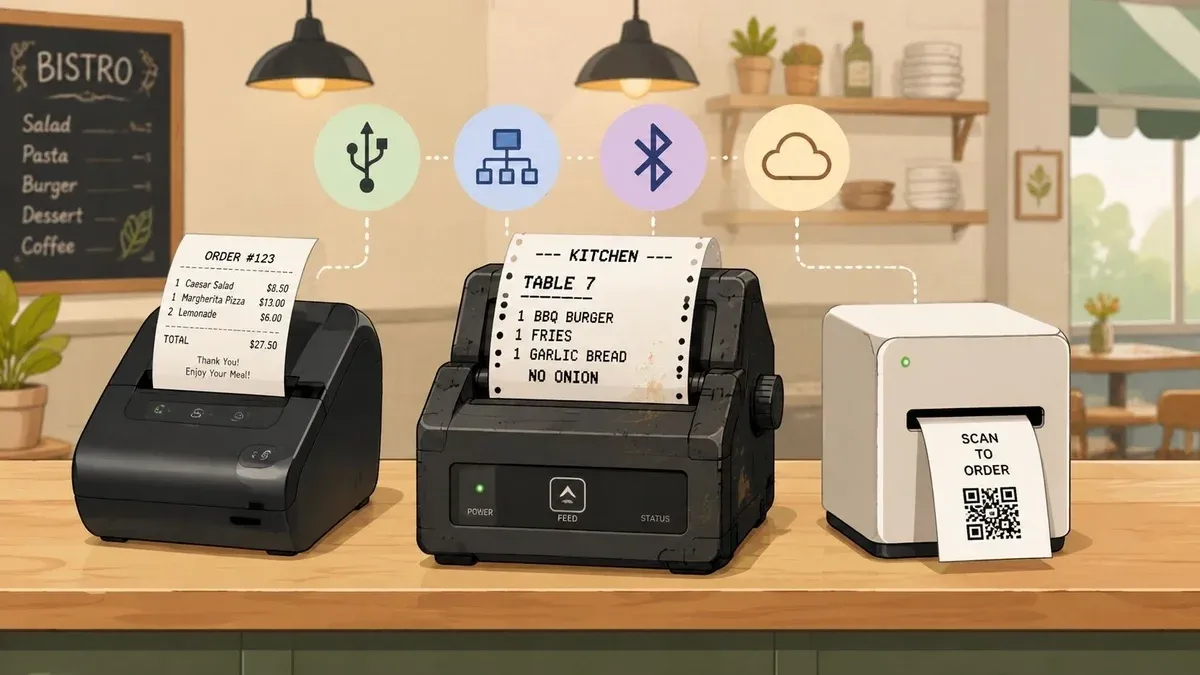
A lot of restaurant owners spend time comparing POS software, delivery apps, and labor costs, then treat the printer like an afterthought. That usually lasts until a Friday rush, when online orders are flowing in from Uber Eats and DoorDash, the kitchen is moving fast, and one failed print job turns into a missed order, a remake, or a refund.
That’s why point of sales printers matter more than most operators think. They’re the physical handoff between a digital order and the people making food. If that handoff is slow, unreliable, or confusing, the rest of your system suffers with it. If it’s solid, your staff moves faster, catches fewer mistakes, and spends less time shouting across the line or re-entering tickets.
For a new restaurant owner, this is the practical lens to use. Don’t ask, “What printer is cheapest?” Ask, “What printer setup keeps orders moving when the kitchen is under pressure?” If you need a quick refresher on how the broader POS setup works in a restaurant, this guide on POS meaning in restaurant operations is a useful starting point.
Why Your Printer Is More Than Just a Receipt Machine
On a busy service, your printer isn’t just producing paper. It’s turning paid orders into action.
If a host stand printer fails, customers wait longer for receipts and front-of-house staff lose time troubleshooting. If a kitchen printer fails, the impact is worse. A delivery order can sit in the system while the line never sees it. That’s where printers directly affect revenue, ticket accuracy, and customer satisfaction.
Restaurants now operate across more channels than the traditional dine-in counter. You may have walk-in orders, phone orders, pickup, and app-based restaurant delivery all hitting the same kitchen. The printer is often the one device that makes those orders visible in the moment they need to be made.
Practical rule: If your team depends on a printed ticket to cook, bag, verify, or hand off food, the printer is part of your production line, not office equipment.
That’s also why this hardware category remains so important globally. The global point of sales printers market was valued at USD 12,652.1 million in 2023 and is projected to reach USD 49,485.0 million by 2034, according to Future Market Insights’ POS printer market analysis. For restaurant owners, the takeaway is simple. Printed receipts and tickets are still core operating tools, even as ordering becomes more digital.
Where the printer hits your bottom line
A weak printer setup usually creates problems in four places:
- Order flow: Tickets print late, print twice, or don’t print at all.
- Labor: Staff stop what they’re doing to check devices, rewrite tickets, or ask the cashier what came in.
- Customer service: Pickup and delivery orders get delayed, and the customer blames the restaurant, not the hardware.
- Waste: Remakes happen when the wrong item is prepared or a modifier is missed.
Restaurants that run smoother usually don’t have magical systems. They have dependable ones. A clean print path, the right printer in the right station, and stable POS integration often matter more than a long list of fancy features.
Choosing Your Hardware Thermal vs Impact and Kitchen vs Receipt Printers
The fastest way to pick the wrong printer is to assume all restaurant printers do the same job. They don’t.
Some are built for front-counter receipts. Others are built to survive steam, grease, heat, and nonstop ticket printing. If you use one where the other belongs, you’ll feel it during service.
Thermal printers in plain English
A thermal printer uses heat to print on special paper. No ink ribbon. No cartridge. Fewer moving parts.
That’s why thermal printers are common at the cashier station. They’re fast, usually quieter, and easier to maintain for receipt printing. In fact, GM Insights reports that the thermal printers segment held over 63.0% of market share in 2024, which lines up with what most operators already see in the field. Thermal has become the standard for high-volume receipt work.
Impact printers in plain English
An impact printer, often called dot matrix, prints by striking an ink ribbon onto paper. It’s louder and slower, but it has one big advantage in restaurant operations. It’s tough.
In hot kitchen environments, that durability still matters. Impact printers are also useful when operators want duplicate paper copies or need a printer that handles rougher conditions better than a typical receipt station device.
Kitchen printers don’t need to look sleek. They need to keep printing when the line is loud, hot, and busy.
Thermal vs Impact Printer Comparison
Feature Thermal Printer Impact (Dot Matrix) Printer Printing method Uses heat-sensitive paper Uses ribbon and print head strikes Noise level Quiet Louder Consumables No ink ribbon Requires ribbon Speed Usually faster Usually slower Best use Customer receipts, front counter Kitchen orders, duplicate slips Environment fit Cleaner front-of-house spaces Harsher kitchen conditions
Receipt printers and kitchen printers do different jobs
Owners frequently find themselves challenged in this regard. The same technology choice doesn’t always fit every station.
A receipt printer lives at the front of house. It prints guest receipts, payment confirmations, and sometimes pickup labels. You want it fast, compact, and easy for staff to reload.
A kitchen printer lives in a harsher setting and supports restaurant operations differently. The goal isn’t presentation. The goal is dependable output. If your line cooks miss modifiers because text is faint, or if the auto-cutter jams during a rush, your printer is hurting execution.
Use this shortcut:
- Choose thermal when speed, quiet operation, and low maintenance matter most.
- Choose impact when environmental toughness matters more than silence.
- Use receipt printers at cashier, host, and pickup stations.
- Use kitchen printers where cooks need immediate, readable tickets.
If you’re checking device compatibility before buying, this guide to Square-supported printers helps narrow down what works with common restaurant setups.
Mastering Printer Connectivity for Modern Restaurant Operations
Friday night, the dining room is full, third-party orders are stacking up, and the kitchen is waiting on tickets that never print. In that moment, your printer is not a receipt machine. It is the hardware link between paid orders and food production. If that link fails, delivery times slip, remakes increase, and refund risk goes up fast.
Connectivity decides whether orders reach the right station at the right time. A printer can be fast and durable on paper and still cost you money if it drops offline during a rush or loses connection with your POS.
The rule I give owners is simple. The closer a printer is to production, the less connection risk you should accept.
Zywell’s supplier evaluation guidance recommends checking support for USB, Ethernet, Bluetooth, and Wi-Fi, along with operating system compatibility. That matters because restaurant print problems often start at the connection layer, not at the print head. A printer that technically supports your setup is not enough. It has to hold that connection through lunch, dinner, and delivery surges.
What each connection type actually means in service
USB
USB fits a simple one-terminal, one-printer setup. It is common at a fixed cashier station where the printer sits beside the register and does one job all day.
The limitation is reach. If you need another terminal, a tablet, or an online ordering device to print to that same unit, USB becomes restrictive fast.
Ethernet
Ethernet is the safest choice for fixed production printers in most restaurants. Kitchen, expo, and high-volume pickup stations benefit from a wired connection because it removes a lot of the signal and pairing problems that cause missed tickets.
This matters even more if delivery apps are feeding orders into your POS. If an online order is accepted and paid for, but the kitchen ticket is delayed or never appears, the problem becomes operational and financial within minutes.
Bluetooth
Bluetooth works for mobile checkout, line busting, and short-range setups where portability matters more than shared access. It can be a good fit for a handheld device printing a quick customer receipt.
It is rarely my first pick for a core kitchen printer. Pairing issues, device handoffs, and range limits create too many failure points for a station that has to print every order without staff babysitting it.
Wi-Fi
Wi-Fi gives you flexibility on placement, which helps in older buildings and during remodels. It also works when running cable is expensive or unrealistic.
The trade-off is consistency. If your guest Wi-Fi, staff devices, tablets, cameras, and printers are all fighting for the same signal, print jobs can lag or fail at the worst time. Restaurants often blame the POS first when the actual issue is a weak wireless network near the kitchen.
Match connection type to operational risk
Use connection type based on what happens if that printer stops working.
- Front counter receipt printer: USB often works well.
- Primary kitchen or expo printer: Ethernet is usually the safer choice.
- Tablet-based mobile service: Bluetooth can fit.
- Layouts that change often: Wi-Fi can work if the network is strong and managed well.
Owners who are building around multiple ordering channels should also understand how the printer fits into the wider stack. This overview of an integrated POS system for restaurant order flow is useful because printers sit downstream from every digital decision your system makes.
The practical takeaway is straightforward. If a printer handles orders that generate revenue, choose the connection method with the fewest points of failure. That one decision affects ticket timing, kitchen accuracy, delivery performance, and how much paid demand your restaurant can fulfill.
Key Selection Criteria for Restaurant and Delivery Workflows
Friday at 7:05 p.m., the dining room is full, delivery apps are still firing orders into the POS, and the kitchen is waiting on tickets. If the printer hesitates, cuts poorly, or fades on modifiers, revenue backs up fast. A lot of owners learn too late that the printer is not a minor accessory. It is the hardware point where every digital order becomes kitchen action.
Most buying mistakes start with sticker price. That is the wrong filter.
In a restaurant, point of sales printers should be selected based on workload, environment, and failure cost. A cheap printer that struggles during the dinner rush usually costs more than a better unit once you factor in remakes, delayed pickups, refund requests, and staff time spent troubleshooting.
Start with the busiest hour, not the spec sheet
A printer can look fast in a product demo and still become a bottleneck once dine-in, takeout, and app orders hit at the same time. Print speed matters, especially at the front counter and in high-volume takeout. It just is not enough on its own.
Splitability’s POS printer specification guide points out that speed is only part of the picture. Cutter life and print-head durability matter just as much in real use. That matches what operators see in the field. A printer that spits out tickets quickly but jams twice a shift is not helping the line.
Use this operator checklist
Print clarity under pressure
Kitchen tickets need to stay readable when the rail fills up. Faint modifiers create the kind of mistakes that hurt ticket times and lead to missing items in delivery bags.
Receipt text can be forgiving. Kitchen text cannot.
Cutter and print-head life
Wear shows up in predictable ways. The cutter starts hanging. The print head starts dropping lines. Staff tear tickets by hand, tickets print half-legible, and the line slows down while someone tries to babysit the machine.
That is a labor problem as much as a hardware problem.
Fit for the actual station
Counter printers and kitchen printers live very different lives. Heat, grease, steam, and splashes expose weak hardware quickly. A model that works well for guest receipts may not hold up near expo or the fry station.
Match the printer to the station, not just to the POS brand.
Reload speed and ease of use
If reloading paper takes too long or the lid closes awkwardly, staff will force it, misload it, or ignore it until the printer is empty. During a rush, those little delays ripple outward. Orders queue up. Drivers wait. The kitchen loses sequence.
Good hardware saves time in small moments all day.
Check workflow compatibility, not just brand compatibility
Owners often ask whether a printer works with their POS. The better question is whether it works with their order flow.
A printer may technically connect and still fail the real test if it cannot route tickets the way the restaurant operates. That matters even more if you rely on delivery apps. Your printer sits downstream from every digital order source, so bad routing or limited station control turns software demand into kitchen confusion.
Confirm answers to questions like these before you buy:
- Can dine-in, pickup, and delivery orders print to the right stations automatically?
- Can modifiers, allergen notes, and course timing print clearly and consistently?
- Can managers redirect tickets if a station goes down?
- Can the setup handle peak delivery volume without creating duplicate or missing tickets?
If you are still comparing platforms and hardware combinations, this restaurant POS systems list for operators evaluating order flow and hardware fit is a useful planning reference.
Buy the printer for the busiest hour of the week.
A delivery workflow lives or dies on small hardware decisions
Here is the trade-off owners miss. A weak printer does not usually fail in a dramatic way. It fails in expensive little ways. An unread modifier becomes a remake. A delayed ticket becomes a late handoff. A printer that drops offline for ten minutes can leave app orders sitting unmade while the customer assumes the kitchen already has them.
That is why printer selection affects profitability from delivery channels. The apps can keep sending demand. The POS can accept it. But if the printer cannot turn those orders into clear, timely tickets at the station that needs them, the whole digital stack breaks at the last physical step.
Reliable printers protect throughput. They reduce avoidable errors. They keep paid demand from turning into refunds and bad reviews.
Quick Fixes for Common POS Printer and Food Tech Issues
When a printer stops working in service, your team doesn’t need a lecture. They need a short checklist.
The goal is to solve the issue safely and fast. Most common POS printer problems come down to power, paper, connectivity, or a stuck software session. If your managers know where to look first, they can get orders moving again before the problem spreads.
The one-minute floor checklist
- Check power first: Make sure the printer is on. Power cords get kicked loose under counters more often than people think.
- Inspect the paper roll: If a thermal printer is feeding blank paper, the roll may be loaded the wrong way.
- Confirm the connection: For USB or Ethernet, reseat the cable. For Wi-Fi or Bluetooth, check whether the device is still paired or visible in the POS.
- Restart the printer and POS app: A clean restart often clears stalled print jobs or garbled output.
- Look for a jam near the cutter: Open the cover gently and remove jammed paper without forcing the mechanism.
Problem and likely fix
Problem Likely fix Printer shows offline Check cable or network connection, then restart printer Blank receipts Reload thermal paper correctly Garbled text Restart printer and POS device Paper won’t feed Check for jam or misaligned roll Tickets delayed Review network stability or queued jobs in the POS
Here’s a quick visual walkthrough your managers can keep handy during service:
When to stop troubleshooting and swap devices
Not every problem should be fixed on the fly.
If the printer repeatedly jams, loses connection every shift, or prints faint text after cleaning and restart, stop burning labor on it. Move to a backup printer if you have one. Keeping one spare, already-configured printer on site is one of the simplest ways to reduce service risk.
If a manager has to “fix” the same printer every week, the problem usually isn’t the manager. It’s the hardware choice, placement, or connection method.
A simple habit helps here. Train opening and closing managers to print a test ticket every day. That catches paper loading issues, faded output, and network problems before customers feel them.
Integrating Printers into Your Profitable Delivery Strategy
The smartest restaurants don’t treat printers as isolated hardware. They treat them as part of a larger delivery system.
That matters because the industry is moving in two directions at once. On one hand, cloud-based POS tools and paperless preferences are growing. On the other, printed tickets still matter because they provide reliability and auditability in active kitchen workflows. Transparency Market Research’s discussion of POS receipt printer trends highlights that exact tension. Restaurants have to balance digital workflows with the proven dependability of printed orders.
Print-heavy, hybrid, and paper-light all have a place
Some operators still run almost everything through printed tickets. That can work well in a fast kitchen where paper is the clearest communication tool.
Others use a hybrid approach. Counter receipts still print, kitchen tickets still print for specific stations, but some order handling shifts to screens or mobile devices. That setup often makes sense when a restaurant wants less paper without giving up the backup value of printed tickets.
A smaller group pushes toward paper-light workflows. That can reduce clutter, but only if the digital routing is dependable and the staff trusts it.
If you’re planning for the next phase of restaurant operations, this overview of 2027 hospitality technology trends is worth reading alongside your hardware decisions.
Where printer strategy meets delivery profit
For restaurant delivery, the key is clean order flow. Orders from apps need to land in the POS correctly, route to the right production point, and stay visible until the food is out the door.
That’s where software and hardware have to work together. Restaurants using an order integration layer can send delivery orders into the POS instead of having staff retype them by hand. In setups that support printer routing, that means app orders can trigger kitchen tickets automatically through the POS workflow. One example is OrderOut, which connects delivery apps into POS systems and fits into this kind of food delivery management software stack.
The practical takeaway is simple. Good printer strategy reduces friction. Good integration removes manual entry. Together, they protect margins, labor time, and service consistency.
If your restaurant is handling delivery, pickup, and in-store orders at the same time, don’t leave the printer setup to chance. Review where tickets print, how they connect, and whether online orders reach the kitchen automatically. When you’re ready to streamline that workflow, you can start onboarding with OrderOut for free in a few clicks.