
How to Download OrderOut on Clover POS and Add a Printer
· Thibault Le Conte
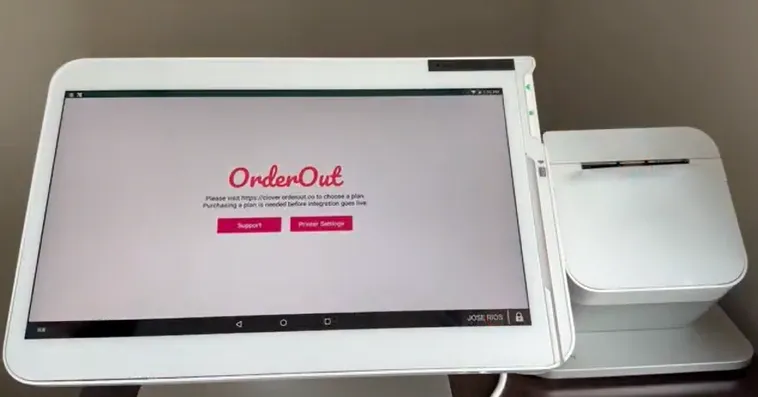
Signing up for OrderOut and connecting to third-party food delivery services can be done from a desktop or laptop computer. Here, you will select your plan and enter your restaurant information, finalize menus, and provide billing information. In order to finalize the setup and integrate OrderOut on Clover POS; however, it is necessary to download the app. This process, along with connecting a printer, must be done directly on the Clover POS.
How to Download OrderOut on Clover POS
After completing the signup and onboarding phase, OrderOut must be downloaded on the existing Clover POS system used in the restaurant business. To get started, navigate to the Clover app market on the POS device.
This app store looks similar to the Apple app store on iPhones or the Google Play store on Android devices. Locate the search bar and enter “OrderOut” to retrieve the app. This will take you to a page with more information about OrderOut’s third-party food delivery service integrations. At the top right corner of the page, you will see a green button that says “connect”. Click this button and when prompted, select “connect” again. The OrderOut third-party food delivery service integration app will begin to download and then will install on your Clover POS automatically.
Once installation is complete, the green button on the top right-hand side of the page will switch to “open”. Click “open” to launch the OrderOut on Clover POS app and you can begin to use the app to accept delivery orders.
After this stage is complete, you will no longer need to utilize the tablets provided by your third-party food delivery service partners. All orders will be sent directly to your existing Clover POS system and there is no need to manually accept or enter orders into the system. This will eliminate the risk of errors due to double entries and will decrease the time it takes for orders to be received, prepared, and delivered.
How to Connect a Printer to OrderOut
To connect a printer to OrderOut, access OrderOut on Clover POS systems directly. From the main screen, select “printer settings”. This will allow you to view any available printers. Select the printer you wish to connect to OrderOut and then select “save settings”. Afterward, your Clover POS printer will be directly connected to OrderOut.
If your printer does not appear on the list during the initial setup, troubleshooting may be required. Give us a call and we will be happy to direct you through the process to ensure that your printer is able to connect to OrderOut as soon as possible.
Need Additional Help Getting OrderOut on Clover POS?
Reach out to OrderOut directly for any issues you may encounter with downloading OrderOut or connecting a printer to the app.